You are editing your playlist and you want to add your media or video content to it? Follow the guide!
Adding media from your library
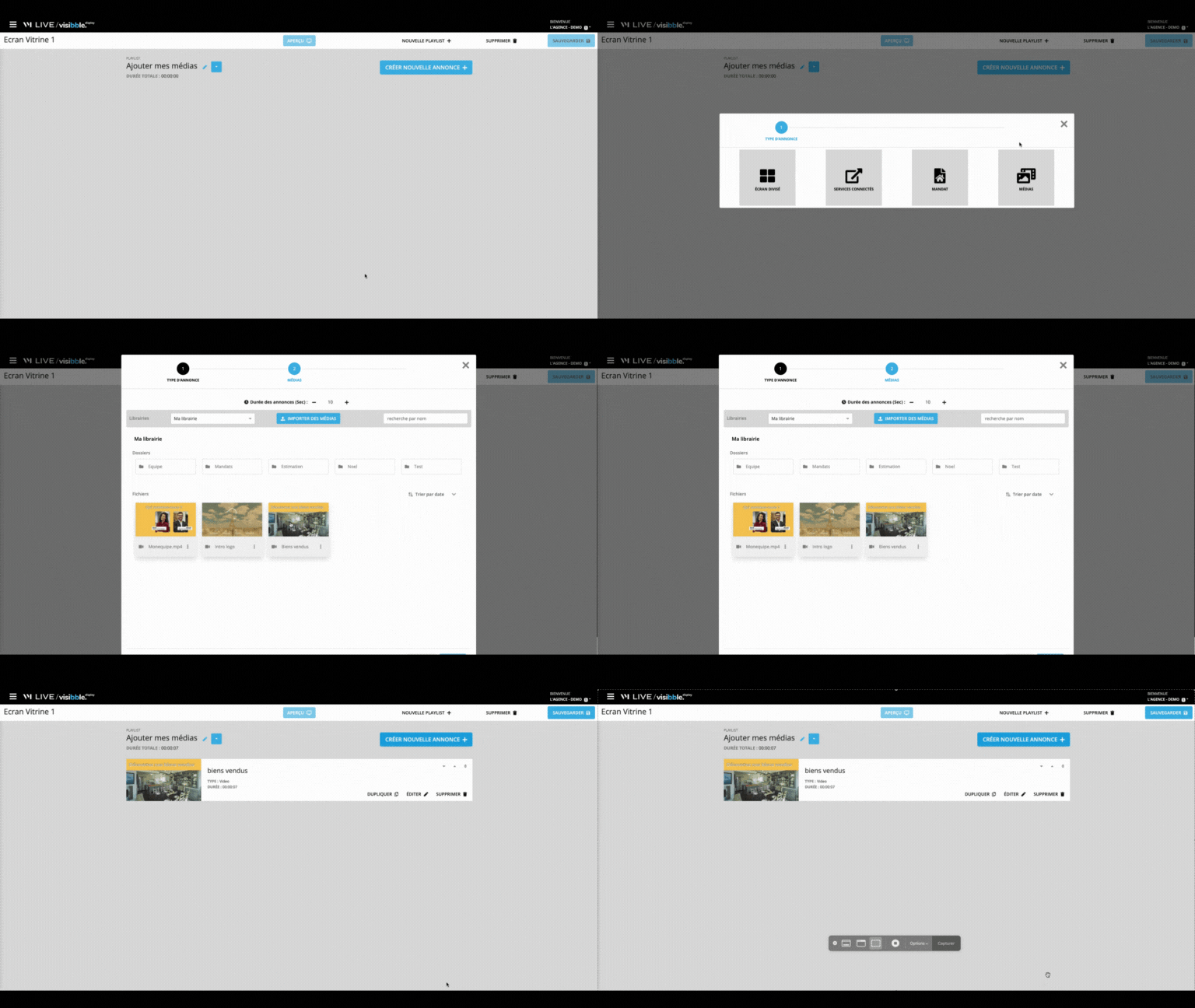
To add your media (image, video, pdf), we will first click on the "Create a new ad" button. You have a choice: split screen, connected services, mandates or media. Click on the "Media" button.
All you have to do is select your media! 🎉
If you want to add an image, don't forget to change the duration of your image ad! For an image without text, we recommend a maximum of 10 to 15 seconds. If your image has text, you can go up to 20 seconds.
If you want to add a video, Visibble Display will retrieve the duration of the video so that it can be played in its entirety!
In the case of a PDF file, Visibble Display will automatically divide the duration of your ad by as many pages as your PDF file has. For example, a PDF file with 4 pages that you want to display for 20 seconds: 5 seconds will be allocated for each page!
Add seasonal content from VITRINEMEDIA!
Every month, we provide seasonal content to liven up your shop window to the rhythm of the holidays and seasons. It would be a shame to miss out, wouldn't it?
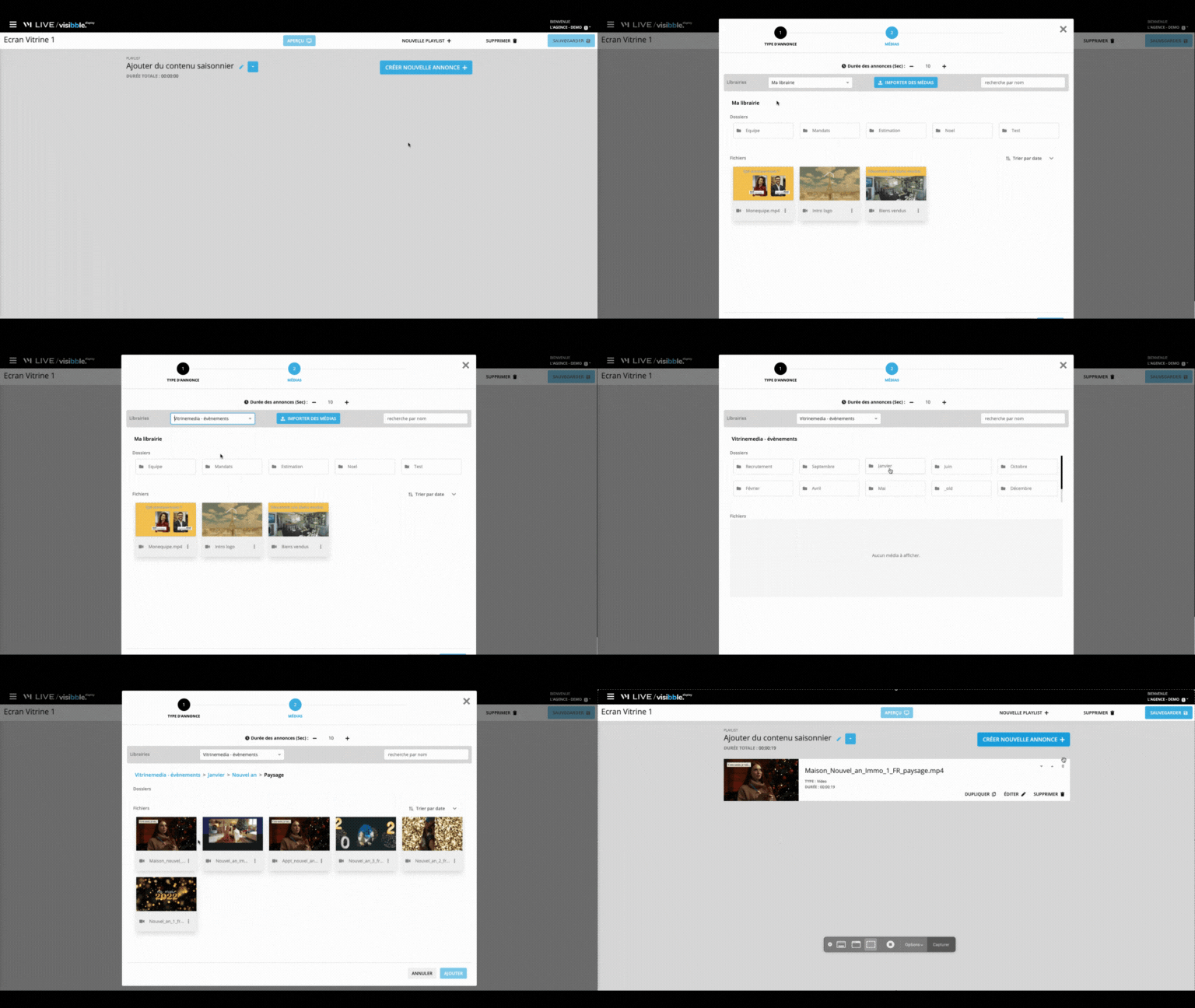
Click on create a new ad
Select Media
Select the VITRINEMEDIA - EVENTS library
Click on the folder with the name of the current month, for example "January".
You have access to different event folders, for example for the month of January, you will have access to "New Year" then "Epiphany". Click on the event you want.
If there is, click on the orientation of your screen, for example, you have a landscape screen, click on the "landscape" folder
Add the video by double clicking, or by clicking on the "Add" button
Add VITRINEMEDIA real estate content!
This library will be your greatest ally in highlighting your expertise and services!
It is divided into 4 themes:
"Expertise": the real estate agent's job is highlighted
"Did you know": useful content for your clients and prospects
"Technical services": do you do virtual visits? Do you use electronic signatures? Make it known!
"Service": rental, management, transaction, highlight the different services of your agency!
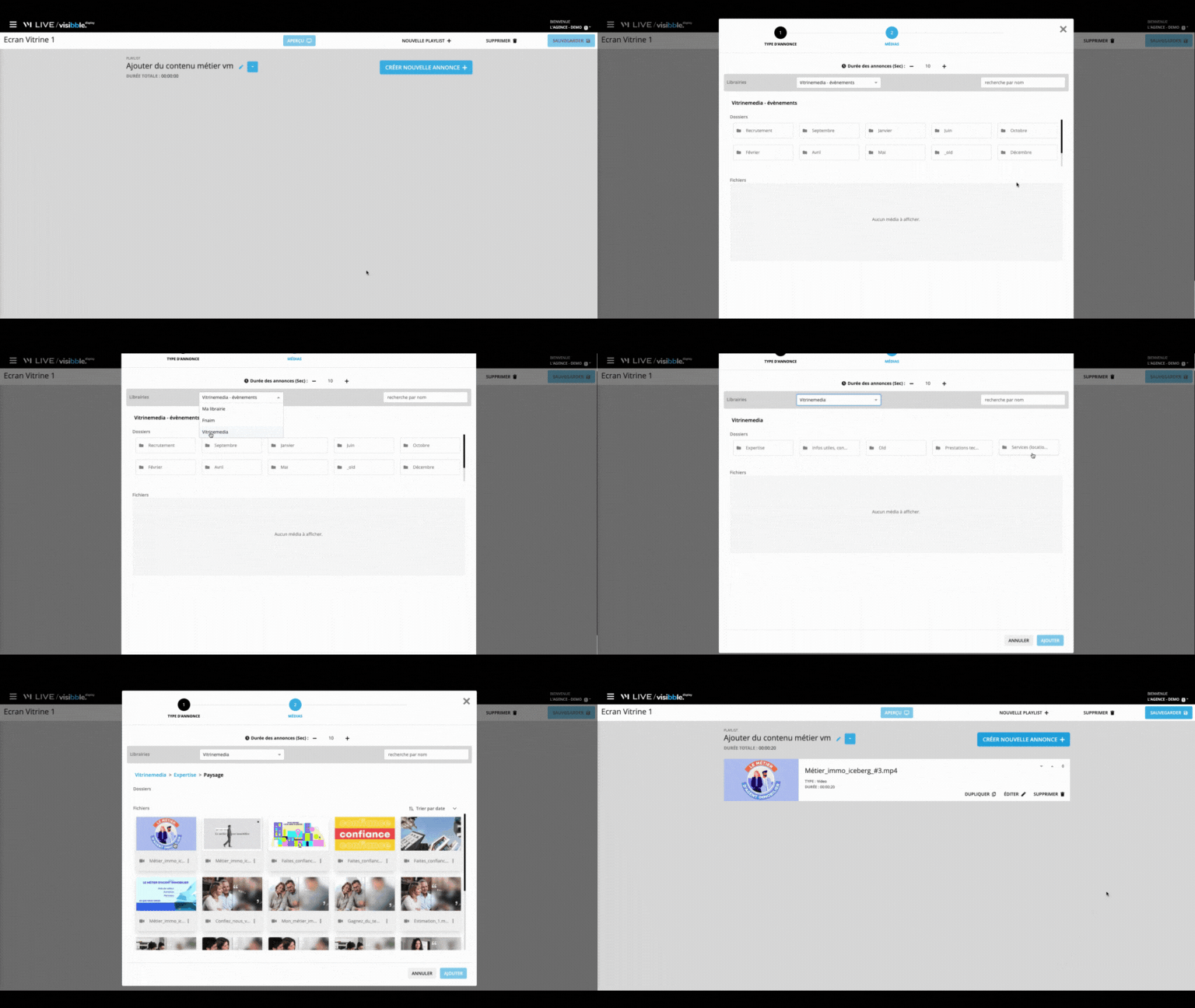
Click on create a new ad
Select Media
Select the VITRINEMEDIA library
Click on the desired theme, for example "expertise".
Click on the orientation of your screen, for example, you have a landscape screen, click on the "landscape" folder
You have access to dozens of videos! Choose the ones you want. Add the video by double clicking on it, or by clicking on the "Add" button.
|
Attention: The format of the imported media is quite free (.jpg, .png, .mp4, .mov, .pdf... and many others), but for the videos, as far as their size is concerned, be careful not to exceed 200Mb otherwise it will not be imported correctly |